
Being a photographer, I have a lot of pictures on my hard disks. Using a Canon 5D Mark II with it’s 23 megapixel sensor shooting in RAW doesn’t help. My main backup is two different NAS servers doing alternating TimeMachine backups every other hour, a feature added in Mountain Lion. This is great, because if one backup unit breaks down or gets stolen, I still have another copy on the other NAS. But what if both got stolen? Imagine the horror? So I’ve been searching for an offsite backup solution that’s cheap and just works. And now I think I found it.
**
Amazon Glacier
Amazon has launched a new service called Glacier for storing files that doesn’t need to be accessed often. And the price per Gb is dirt cheap. So using this service would be perfect to use for my purpose. But to make everything easy, you need a backup program that supports Amazon Glacier for storage, and fortunately I found one.
Amazon Glacier is an extremely low-cost storage service that provides secure and durable storage for data archiving and backup. In order to keep costs low, Amazon Glacier is optimized for data that is infrequently accessed and for which retrieval times of several hours are suitable. With Amazon Glacier, customers can reliably store large or small amounts of data for as little as $0.01 per gigabyte per month, a significant savings compared to on-premises solutions.
Arq 3 Backup for Mac OS X
Arq 3 is a backup application that can do backup to Amazon S3 or Glacier. It doesn’t use Amazons server side encryption so the data is sent encrypted directly from Arq 3 itself. Haystack Software provides a command line utility called arq_restore on github enabling you to access your data without Arq 3, which is a nice touch if they should go out of business and not leaving you stranded with data you can’t access. An even better solution would have been to put a unencrypted compressed file containing the source code for arq_restore in every backup bucket.
Setting up the backup
The application installs a menu bar icon to make access to the application a breeze.
After getting registering for an account at Amazon, something Arq 3 guides you through, you just add the folders you want to have backed up. 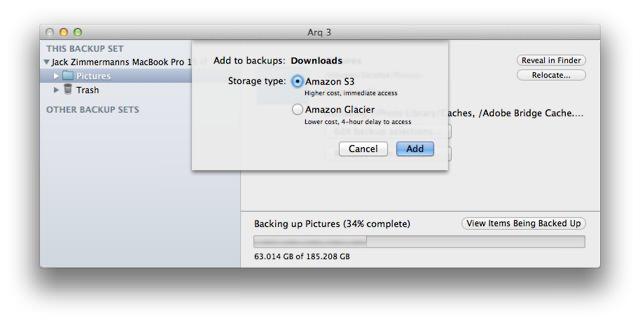
You can select to store it in S3 which has faster access times but is more expensive, or choose Amazon Glacier with it’s lower cost but have slower access times.
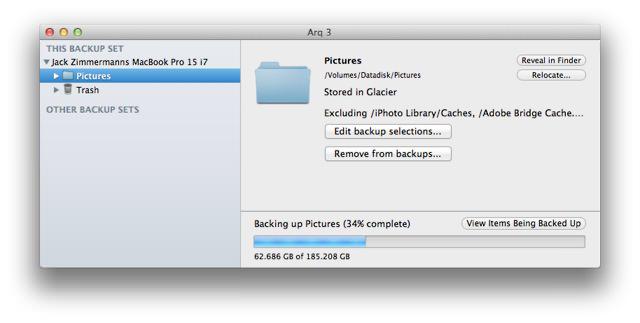
You can exclude files and folders from the backup, or choose to not backup files that fit a specific search criteria.
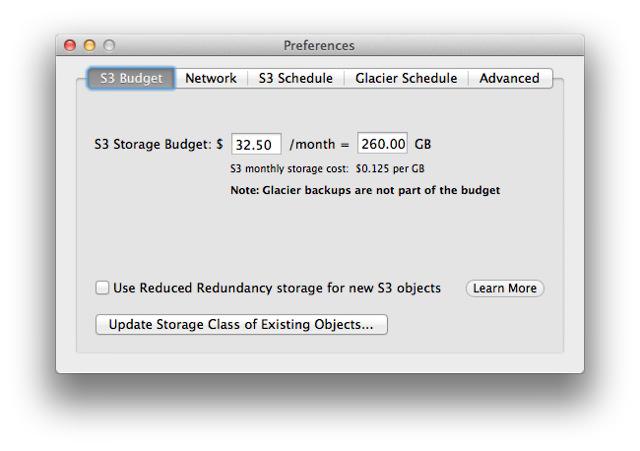
Budget
One nice feature is the Budget preference. Here you can set up a cost limit so you don’t get any surprises when it’s billing time. Very handy!
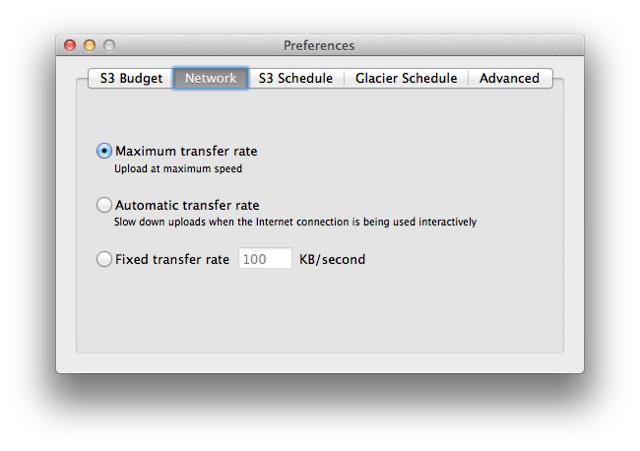
Bandwidth throttling
You can set up the backup to slow down when you are actively using your Internet connection, set it for full speed or choose a specific bitrate for uploading. I have a 100/10MBit line and upload at full speed and the application seems very CPU friendly, something not all backup programs can brag about.
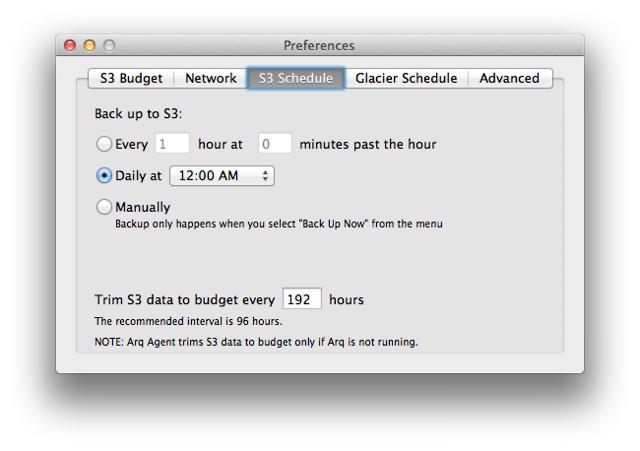
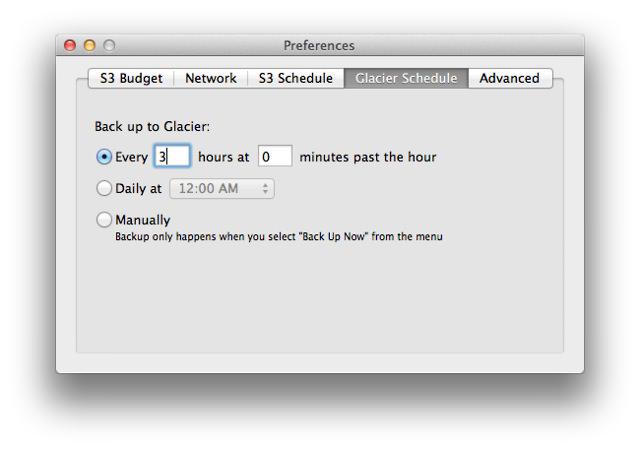
Scheduling
You can set how often the backup executes. There is options to set different times for S3 and Glacier. I wish that you could set this per folder also, but that’s an minor annoyance.
First backup
Be prepared that the first backup will take a long time. Of course this depends on the amount of data to backup and the speed of your Internet connection. But after the initial backup, only changes are uploaded.
Restore
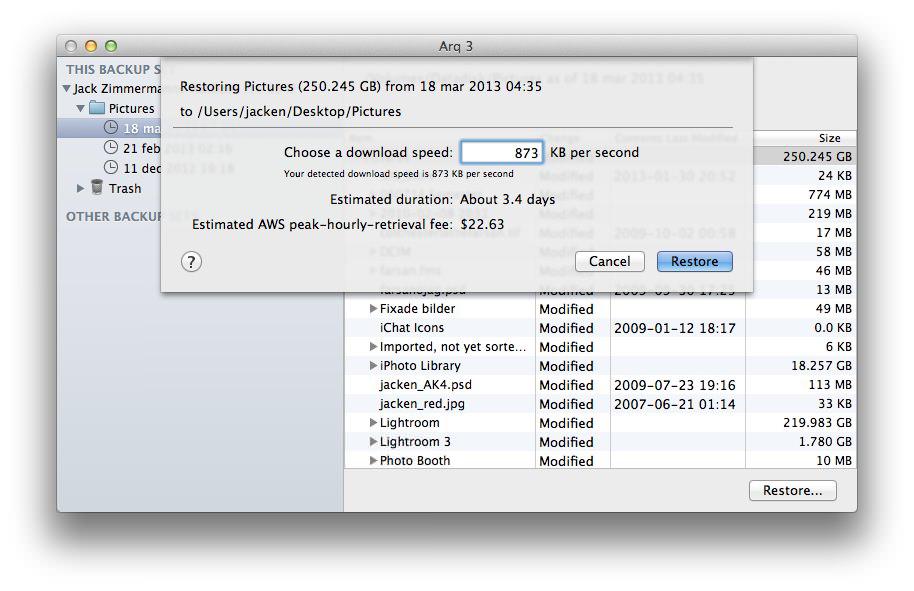
If you need to restore, Arq will test your download speed, and then do an estimate of total cost for downloading your backup data. If you have a fast internet line, the restore could become very costly, because you pay more the faster you download. But there’s a built in function for setting the download speed manually, essentially throttling the download. You get a cost estimate, so if your not in a hurry, just enter a lower download speed value. You get an estimate cost for restore directly, so choosing how fast you want your data is easy.
The fear of loosing years worth of photos is something I hope this will remedy. I’ll keep you posted on how it goes.
**
Hur har det fungerat med backuperna? Är tjänsten bra, funderar på att köra igång själv!
Trying to keep this blog in English, the question was, "how's the backup working?", and I think it works excellent! Initial cost of uploading 160Gb of images including Content Delivery Network for this blog amounted to about $11. This months bill is about $3.5 which is amazing! I only upload after an important photo shoot, so that keeps the costs down.
Some of what you highlight above is S3-specific and doesn't pertain to Glacier. I'd also be curious about the retrieval costs of an entire iPhoto library should the unthinkable occur. My iPhoto library is currently 240 GB and according to amazon-glacier-calc it might cost me $464 to retrieve it.
I've added info on restore cost above. You need a pretty fast internet connection to get that kind of bill, because the faster you download, the more it costs. If you just throttle the download, the prices doesn't go insane. I use this backup system as a last resort, having TimeMachine backup to two different servers. So if something really horrible happens, I still have a off-site backup, and can retrieve it. If I set it to download for three days, it amounts to $23. A small price to pay to get images collected under a ten year period.
Wow, so amazon-glacier-calc was way off. Thanks for the update, this makes me feel better about my backup. I was backing up to another provider previously and it was costing me $20/mth. Now I'll presumably be paying about $2.50 a month and ~$20 to get the data if I need it. Just about pays for itself the first month!
Yepp, that's the gist of it. If you need stuff for fast retrieval, Amazon S3 is a better alternative.
So, I'm a video guy, with 15 two TB drives sitting on my shelf, just sitting there waiting to corrupt or die on me. I've been trying to figure out how to estimate costs for upload and monthly storage. I was coming up with an ungodly fee as well. I'm having a bit of an issue wrapping the head around how you came up w/ the costs?
Well, using Amazons Cost Calculator, you need to be a rocket scientist to figure it out. But inside the Arq application, when selecting to do a restore, there is a built-in estimate calculator (I've added a screenshot in the article) that gives you an inkling of the final price. I haven't had a reason for doing a restore yet (and hope I never will), but hopefully it's reasonably correct. You could check with the Arq support to be sure. My guess is that the programming of the cost calculation took longer than actually writing the backup code! :-)
Does Arq require you to keep a synced local copy or can you "send" data to Glacier and not keep an online, local copy?