Image by DigaoSPBR
My internal hard disk would continuously spin on my MacBook Pro and never goes to sleep. I replaced my internal drive on my MacBook Pro with an SSD disk, which made a massive difference in speed. At the same time, I removed the DVD unit and installed a new 500gb drive instead. The extra disk went to sleep when not in use, but then started within a couple of minutes or less. Here’s what I did to fix that problem.
Finding out the culprit
First of all, I needed to change the time before the disk went to sleep. I set the value before sleep to one minute, so I don’t have to wait long between tests.
sudo pmset -a disksleep 1
The command will set the time for sleep to one minute when using an AC adapter. Replace -a with -b for changing the setting when on battery power.
To find the applications that were accessing the volume, I opened the terminal application and started to observe the output of the following terminal command. To narrow the output, I used grep to just show events and access to the extra disk. Otherwise, you’re going to get a LOT of additional output.
ls /Volumes/
The command will show you the name of your connected volumes. If the volume name contains spaces, you need to add \ before every space character. For example, let’s say the volume name is Macintosh HD, you need to use
Macintosh\ HD
Replace name_of_volume with the name of your disk.
sudo fs_usage | grep name_of_volume
Enter your login password. When the disk wakes up, press ctrl-c to stop. The text can scroll pretty fast. Look at the right column for stuff that might have activated the disk.
The first thing I noticed was that fseventsd was logging information to the external disk. To deactivate the logging, just enter the following:
cd /Volumes/name_of_disk

sudo touch .fseventsd/no_log
Interfering software
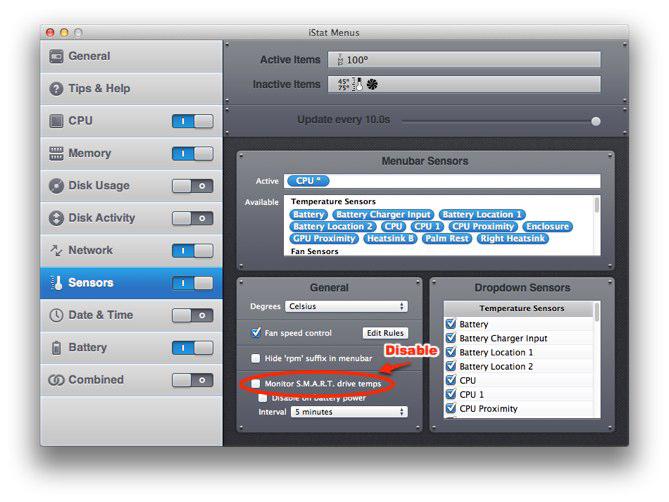
I continued to look for applications or processes that accessed my disk, and one of them was iStat Menu. I checked the settings for iStat Menu, and the disk info part was disabled, but it still accessed the disk. So I had to disable it. I love iStat Menu, so that felt a bit sad, but until they fix this, it will be turned off.
Update: Thanks to one of my readers Hextor for finding this. There’s a way to get iStat Menu without the disk continually waking from sleep. Disable the S.M.A.R.T check of the drive.
I have a lot of links for stuff like the download folder, Final Cut Pro settings, buffers for applications and all my photos on the extra disk so naturally, the additional disc will start when using applications using these files. But now when I surf the web or write, I no longer have to listen to the sound of the disk. Blissful silence.
If you don’t need to do Spotlight searches on that disk, you can add the drive to the ignore list in the Spotlight settings under System Settings. Or disable Spotlight altogether.
Disable Spotlight
On my machine, I’ve disabled Spotlight altogether. Found this post with details on how to do it.
Enter
sudo mdutil -a -i off
To enable it, use the same command, but replace “off” with “on” instead.
Disable Time Machine Local Backups
When OS X can’t connect to your Time Machine backup server, the operating system does local backups. That would sometimes start up the disk. After reading this description on how to disable local backups on my machine, the disk never wakes up if I’m not directly accessing it. But if you’re not connected to a backup device for Time Machine, there’s a risk of losing information if something goes wrong, so read the linked article before proceeding.
You can now change the time before the disk goes to sleep. My 7200rpm disk starts very quickly, so I kept mine on a couple of minutes. Added benefit? Much better battery life!
I hope this helps you if you have the same problem.
You are great!!!!
I have a feeling that this really has the potential to fix my problem (the fseventsd issue). However, when I enter the command to designate which disk, terminal tells me that there is "No such file or directory". I looked in system information and I'm definitely entering the right disk name. Have any idea of what I might be doing wrong?
If you do: ls /Volumes/ What exactly is the disk name? Remember that you need to add a before spaces. So if the name of your disk is Macintosh HD you need to write Macintosh HD
Haha, of course. I don't often enter terminal commands. That worked like a charm though, thanks!
Just out of curiosity, in case I need to enable that feature again, for whatever reason, how would I go about doing that?
Great to hear that you got it to work.
The only time you need to do this if your hard disk starts spinning often, or refuse to sleep all together. If you use TimeMachine you have to get used to the extra drive spinning up once an hour for backup. But I guess that's a small price to pay for having your data safe.
Well, I spoke to soon, it's still spinning up pretty often (about every 5 minutes per the info in terminal). I thought the command worked but this morning my drive started spinning up again for no reason. I was just browsing Safari, not accessing the drive for anything.
I did the "sudo fs_usage....." command again and found this to pop up whenever the disk spun up:
open /Volumes/Macintosh HD 2/.fseventsd/fbd8c31565adf91d 0.000045 fseventsd
I was able to get everything to work as far as the stop logging command was concerned (typed my password and then hit enter), but apparently "fseventsd" is still logging. Is this just something I'm going to have to deal with?
P.S. thanks for your help thus far!
And creating the no_log file does not help?
I'm not 100% certain that I created a file but if by creating the no_log file you mean only entering the commands then yes, I did.
Hi. I have the same problem, i have a 2 drives, one SSD is in drive bay and second is in optibay. I have nothing in terminal after: sudo fs_usage | grep Dane (my second drive name is "Dane") but disk is still spin up every 3 minutes, i use script to unmount/eject it but it still wake up... any sugestion? I am very frustrated :( Please help... I dont have iStat Menu
The fs_usage is just a command to show what process access the disk. You need to look at the output and when the disk starts spinning up, write down what process woke the disk. Put a comment here if you can't figure out what the specific process is and I'll try to help you.
Thanks for your excellent write up. I have an external HD that is refusing to spin down. I am finding that SystemUIServer is accessing the drive once every minute. Web research shows that SystemUIServer is what handles the right side menu bar items like the Disk Eject icon, or Spotlight, or where iStat Menus would live. I am not running any third party menu bar add-ons at the moment, and I have even disabled spotlight temporarily to see if that is what was causing the accesses to the drive. I also disabled Time Machine because that drive is a Time Machine disk.
Still every minute I get this:
orion:~ seanb$ sudo fs_usage | grep BetelgeusePassword:11:11:28 getattrlist /Volumes/Betelgeuse 0.000037 SystemUIServ11:11:28 getattrlist /Volumes/Betelgeuse 0.000011 SystemUIServ11:11:28 getattrlist /Volumes/Betelgeuse 0.000019 SystemUIServ11:11:28 getattrlist /Volumes/Betelgeuse 0.000010 SystemUIServ11:11:28 getattrlist /Volumes/Betelgeuse 0.000008 SystemUIServ11:11:28 getattrlist /Volumes/Betelgeuse 0.000010 SystemUIServ11:11:28 statfs64 /Volumes/Betelgeuse 0.000010 SystemUIServ
Nothing else comes up. Just a repeat of those 7 entries ever minute.
If I change the grep to read:
sudo fs_usage | grep SystemUIServer
I find that what ever is using SystemUIServer is ONLY accessing the Betelgeuse drive every minute. All my other drives are unaffected. (I have an internal, and 3 other externals of varying brand and size).
Any ideas? I'm going crazy here.
And no iStat installed or other background utility? You could try to start in safe mode. If the problems dissapearing, there's a background process running and we have to continue the search.
I did some more trouble shooting. I booted this very clean, and very streamlined system (it's a Mac Mini used as a media server, so it has hardly any software on it), using the shift key. The only items showing in the menu bar were Fast User switching, Spotlight and Time Machine. I didn't bother disabling those because I have previously, and they were not the culprit.
I'm starting to wonder... since out of my 4 external drives, this is the only one that does this, and it also happens to be the only one that is an Apple software RAID 0, do you think this somehow has to do with that? Something the OS does with RAID slice drives?
Thanks so much for your help in this. if you have any ideas of how to troubleshoot this, I'll gladly follow them.
I think you are on the right track. The RAID software needs to keep the different volumes in line. If it was some software or process disturbing, you would get it on the other drives as well. I'll do some digging (don't have any software RAID, only hardware)
I also have a hardware raid enclosure, a Western Digital MyBook Studio II, and it is spinning down properly. The drive that is not spinning down is a G-Tech G-RAID w/ Thunderbolt. It came from the factory set up as a Disk Utility software RAID.
Hey, thanks for the great tips. I think I know why iStat Menu (v2.0) would keep a disk from spinning down, at least in my case. It appears that a temperature sensor which monitors S.M.A.R.T drives keeps it alive. Turning this off worked for me and still get to use iStat Menu, yey!
Cool! I'll try it when I get back on my computer! Thanks for the tip, gotta love iStat Menu!
Just tried out your tip, and it seems to work like a charm! Thanks! I'll update the article to reflect this. Thanks again!
I had the same "issue" too with iStats and a 2nd HDD inside my Macbook Pro! Finally it's silent again, and I'm quite sure battery will last more from now on! Thank you both of you for the solution!!!
Hope I am not 3 months late.....
I am having the same problem as Cheule man where it list the SystemUIServ as the culprit for my 2nd HDD spinning up. Now the difference is, I have no RAID on my end, just a simple MacBook Pro with a Loud Spinning HDD in my optibay.
This is what I have tried:
sudo touch .SystemUIServ/no_log
sudo touch SystemUIServ/no_log (without the period before SystemUIServ)
....and for both the Terminal does not recognize it in the directory.
There is nothing loaded on my 2nd HDD except for Photos that is about 4gbs worth. Please, please, please help me! I going crazy with this.
You need to put the entire path to your volume. You'll find the mounted volumes under /Volumes, so for example, if your volume is called HappyPappy, the path would be /Volumes/HappyPappy.
Hi everyone, I hope it isn't too late to get an answer.
I have a Macbook with a SSD in optibay and a HDD in its original bay.
I removed SMART check from iStat, and my HDD still wakes up every 2-3 minutes, and I can't figure out why. When I do this command : " sudo fs_usage | grep HDD " I got nothing, even if the disk just started up.
It sounds very weird to me, I am wondering if I wouldn't buy a new SSD bigger than the first one and put my HDD to the right place : trash.
Thanks a lot if you could give me some help :P
Edit : the disk wakes up every 3-5 minutes, run for 1 minute, and shutdown...
You need to give the entire path to the volume. It should start with /Volumes/name of volume So if your disk is named HDD, you need to write: sudo fs_usage | grep /Volumes/HDD
Thanks a lot, but it didn't work :(
I tried to eject the disk with the terminal : diskutil eject disk1
I also tried the command : sudo fs_usage | grep /Volumes/HDD
(My drive is named 'HDD')
So obviously the disk did shutdown, but it started to spin again after a while (maybe 10 minutes). And I got nothing in the fs_usage command...
That's weird. If you restart the machine, open Terminal, and do: cd /Volumes ls
You should get a listing of all mounted volumes. Can you find it there?
Ok I'll try this this evening, I can't do it right now because I am working.
The point is I am pretty sure that my drive will be there after a reboot.
Maybe the problem is I have two sessions on the laptop, one personnal and one for working. On the working one I don't even use the HDD, but on the personnal one, I use symlink in my personnal folder. I also use HDD drive for downloads. But yesterday when I tried all that stuff, this session was not loged.
I am thinking to a new SSD drive, bigger than the one I use, and I'd do a full format and a clean reinstall. After that, I could use 2 SSD on my mac, and never get any spinning sound...
If you have the time, please copy the output from your /Volumes directory. I'm curious why it won't work.
Having dual SSD disks sounds like a dream. I do a lot of RAW photo editing, so I have to wait a year or two until the prices drops drops further before I can upgrade to two SSD disks.
I have time to do that :
ls /Volumes/ HDD SSD
Dual SSD or one big SSD, what's the best ? For me I'd say 2 SSD will be better because I already have one :), and because in Macbook Pro you can do this. But I was wondering few days ago to buy a Macbook Air, and I just had to check the price of Apple's SSD to change my mind and go back to my old Macbook Pro :D
I am having the exact same issue as Juluss, below. Same configuration: MBP with a 256GB SSD in optibay and a 650GB 7500 rpm HDD in original bay (for the SMS protection). Sometimes after waking the MBP from sleep, the HDD will not spin down. I have the power management set to spin down the HDD after 1 minute (for either power source, battery or adapter). I just confirmed the pm settings via Terminal, and they have persisted.
I mentioned the wake from sleep timing of this issue, and will add that I have the hibernation sleepimage set to write to the HDD (for two reasons: the 8GB of space that it consumes--might as well be on the HDD, and the fact that my MBP goes to sleep a minimum of a half-dozen times daily, so I don't want to write 50GB of data to the SSD every day.)
I have been running the command: "sudo fs_usage | grep /Volumes/Macintosh HDD" for the past half hour, and get no output from it. Recall, the HDD should sleep after 2 minutes of inactivity. Clearly it is not sleeping after 30 minutes. If I restart the Mac, it will promptly spin down. With the SSD, I can quit all applications, restart the Mac and re-launch everything, restoring nearly 60 tabs in Safari all in under 2 minutes (which was a 10-minute ordeal when I was only running a 5400 rpm HDD), but the 2 minutes is still a pain, and does not address what is clearly an issue here. The bottom line is that the HDD should spin down, since there is no activity.
Any help to troubleshoot this would be greatly appreciated! (I suspect that I'm missing something pretty obvious here.)
Do you get any output if you open the hard drive in Finder? You should.
Yes, switching to Finder and opening the HDD generates a ton of output.
But you get no output when the disk spins up?
Not sure what a "starting point" should be. But, the Mac was restarted this morning, I've been working on it for hours, and everything works fine.
However, later today the computer will sleep. If the past pattern holds, after I wake it from sleep, the HDD will not spin down when/as directed. if I run the fs_usage in terminal, and go to Finder, open the HDD, I will get output in Terminal as I should. However, when I stop using the HDD for anything and, say, just Web browse, the HDD should spin down after 2 minutes (my PM setting, which I confirmed). But it usually fails spinning down after 2 minutes once the computer has awoken from sleep (this could be a red herring, for all I know; it could just be 8-12 hrs or more since last restart), I can go for 20, 30 minutes, easily, without using the HDD, AND (most puzzling) no HDD activity in Terminal. That's what I don't understand--why would the HDD spin for 20-30 minutes after the last fs_usage activity when the PM setting is to spin down after 2 minutes. Which it does after a fresh restart.
What kind of disk is it? Wonder if there is a firmware update? Sounds like a bug...
I had not thought of a firmware issue on the drive. Guess I should research that. Bummer--I thought I might be narrowing on in this issue when I found your blog, but I could be days into a firmware issue!!
FYI, OS 10.6.8 Samsung 640GB 7500 RMP from System Profiler: Model: SAMSUNG HM640JJ
One item that puzzles me (in addition to the lack of proper spin-down) comes from having watched the fs_usage window for a while now. Safari occasionally accesses the HDD via "getattrlist" and "statfs64". Any insight into why Safari is doing this?
Thanks!
Any chance that you put your download folder on the HDD?
Bingo. Thanks! It'll be a some time before I research the firmware status (since everything is functional), but I'll post the results of my research.
And what version of OS X?
Hi!
Thanks a lot for your guide. It almost works perfectly. But something is waking up my drive. So did a small monitoring and this was the result:
sh-3.2# fs_usage | grep ZEUS
14:11:41 getattrlist /Volumes/ZEUS 0.000008 Dock
^C
Do you have any idea, why the dock(???) wakes up my disk?
Best wishes, Mario
Weird! Do you have any folders in the dock that resides on that disk? Any applications? I have my download folder on the extra disk now when I think about it. I'm sitting right now trying to find what's waking my disk again!
Thanks for the tip about fs_usage. When I use it to try to solve this problem, the output associated with the unwanted spinup every 5 minutes (in my case of the disk inside a Time Capsule) looks like this (hundreds or more similar lines):
14:07:14.925030 RdMeta D=0x0006f378 B=0x1000 /dev/disk0s2 0.000112 W dynamic_pager.322
So I wanted to point out to other commenters that the disk name does not necessarily show up at all, it might be a device name -- so the grep command would have missed it completely. (Another reason it might not show up is if the pathname accessed is long, since it looks like fs_usage only shows the last so many characters of the pathname.)
(I didn't yet confirm that /dev/disk0s2 *is* my Time Capsule disk, but this output seems to happen only when the unwanted spinup occurs, so it seems likely.)
Any idea why dynamic_pager might be doing this? This happens when nothing is "legitimately" accessing the disk and the finder claims I'm not connected to it (but it *is* listed in /Volumes/).
That looks like a memory swap. When your internal memory is full, OS X starts to use your disk, swapping out memory from your RAM to disk. This means that you have too many applications opened, or not enough RAM to handle your task. Best solution? Buy more RAM. Cheap, and OS X loves memory.
Hows it going? Been using this guide and someone else's to try and pinpoint the same problem with no luck. Was hoping for some help since it seems like you have helped quite a few people out. So here's my details.
-MBP 17in w/ 250 ssd (2 partitions) & 750 hdd (the original drive single partition with only Sound Banks I use for music production) -No smart drive checks from anywhere including Istat. Also uninstalled istat server for phone access. -Timemachine off, spotlight indexing off for that drive, no wake for network access
-Just restarted computer and turned on terminal and entered the fs_usage command started SpindownHD and -opened safari to keep this page open so could give you details.
-I have drive set to not mount when turning on computer but it still spins up at login but does not show the icon and after one minute as expected SpindownHD shows the drive in sleep.
-I set a stop watch to see how long it would take from Spindown HD showing sleep to Active and it was 15min 45 seconds.
-I have attached a screenshot as well & and help would be kindly appreciated. Thank you. GD
Screenshot
I guess screenshot isn't working, but absolutely nothing shows up in terminal.
dyld: DYLD_ environment variables being ignored because main executable (/usr/bin/login) is setuid or setgid
Last login: Wed Apr 3 15:23:10 on console
Gauthams-MacBook-Pro:~ Audio$ sudo fs_usage | grep /Volumes/Audio
Password:
another attempt at adding screenshot
after spinup
after-spinup
after harddrive spinup
Thanks for this excellent page. I have an 2011 17" Unibody, with Samsung 840 Pro in my HD bay, and a WD 750GB in my optibay. My System is on the SSD, my Home folder is on the HD. I cannot get the HD to spin down, even when I run in safe mode, or when I run as another user that resides on the SSD. I read somewhere that it might be because of a the optibay caddy (mine was a cheap ebay one) so I replaced that with a DataDoubler, but the problem persists. I have diabled Spotlight for the drive, and used the terminal command to set the spindown to one minute. Do you have any suggestion(s)? I once heard the drive spin down for a few seconds a few weeks ago, but it duly started up again without input from me. Many thanks!
If you have the home folder on the WD750, the disk will be written to when preferences changes, when you start applications that modify files in your Library folder. You should be able to see which files are accessed in the terminal using fs_usage. The best solution is to have OS X and your user folder installed on your SSD disk, and link larger folders to the hard drive. I have iTunes music on my hard drive, so naturally the disk will spin up when listening to music. Same thing for the Movies folder. Every time you save a document to your home folder, the disk will spin up. You see the problem?
Yes, absolutely - the trouble is, the hard drive keeps spinning even when I 'don't do anything' for however long. Following your grep instructions, I notice that every ten seconds I have an entry like this;
13:21:20 getattrlist /Volumes/Home 0.000006 launchproxyl
Could this be the culprit?
Many thanks for your help!
Do you have any background management applications like Hazel? Try to quit all utilities and apps.
Thanks again -would starting up in Safe Mode achieve this most effectively? And, would you happen to know what the launchproxyl entry is about?
http://en.wikipedia.org/wiki/Launchd
thanks
Hey! Sorry for digging up an old thread. But here goes,
I swapped out my HDD for a SSD and put the HDD in an Optibay. However, the HDD doesn't spin down. I did the above and found that Java and Firefox are accessing (?) the drive. But my OS and programs are installed on the SSD and not the HDD. Do you know what I could do?
Where do you have your download folder? Sounds weird that Java accesses the extra drive. Are you sure your not running anything else written in Java?
My Download folder is on my SSD so that shouldn't be the issue. Java could be my Crashplan. But I have it set to backup every hour. So I reckon I could have been unlucky. Java seems to be okay now. But I have been seeing Firefox, mds_stores, and launchd very frequently. Any ideas about those?
I would check out Crashplan, because I think it's written in Java.
Hey Jack. Yes. Crashplan seems to be the issue here. Still trying to figure out why Firefox would be accessing my storage drive though
My second HD in my mid-2009 MBP spins down after unmounting it, but always spins up after a while, with no output in sudo fs_usage. The disk is in optibay, SSD in the place of original HD.
Any ideas?
And no utilities running for checking SMART status etc?
Not to my knowledge, I even installed iStat Menus, removed SMART monitoring and then uninstalled it. If the disk is mounted and idle, I get this output all the time:
statfs64 /Volumes/Macintosh HD 0.000006 system_profi
I tried to google that but found no real clues what that might be...
Did the pmset disksleep thing and disabled spotlight with no difference.
I think it's weird how an unmounted disk suddenly starts spinning again. Maybe a hardware/firmware bug? I even swapped the places of HD and SSD but it made no difference.
It's absolutely weird, if the disk is us mounted, the OS should not access it.
Dear Antti
In case this is still relevant. I have had the same issue with system_profi briefly addressing the drive with statfs64 command exactly every minute and keeping the hard drive of my macbook awake. After some googling and searching through file system I located a system_profiler resource inside /usr/sbin/ directory. It is accessible via Go > Go to Folder > /Your Startup Drive Name/usr/sbin/ . I then moved the file system_profiler to desktop as a temporary fix (you may need to type in your password) and the annoying disk wake-ups stopped. The System Profiler application remained fully functional, so this resource is apparently not related. Today I noticed in the console log that com.apple.systemstarter still kept trying to launch system_profiler (but to no avail). After some more googling I went to Library > StartupItems on my startup disk and removed following folders "FanControlDaemon", "BRESINKx86Monitoring", "ProTec6" (you may need to type in your password). After that the console log was not showing com.apple.systemstarter trying to launch system_profiler any more. I put the system_profiler back into /usr/sbin/ and my disk is still quiet. I am not sure which of the mentioned startup items was to blame but all were inherited from previous macbook. The "ProTec6" is apparently in charge of registration information for certain apps, the "BRESINKx86Monitoring" has something to do with iStat, and the "FanControlDaemon" is a 3rd party app I installed some time ago.
I hope this helps!
Petr
Petr, thanks for your effort in solving this mystery!
I did the same procedures, and I'm happy to report that the disk now stays quiet after I unmount it.
So as of now, the issue seems to be addressed. The only annoying thing is that the unmounted disk still spins up when I wake the computer from sleep, and I have to mount and unmount it in order to spin it down. But I assume this can't be avoided?
Hi Antti, I am happy to hear this solved it for you! This has been extremely annoying in my case, so I would imagine it was the same in yours. The disk does spin up on wake from sleep but with spindown interval set to one minute (as described in Jack's post), it will normally soon spin down. I keep it mounted at all times though (I understand you keep yours unmounted?), so maybe there is actually a point in keeping it mounted so the system can spin it down?
PS: Coincidentally as I was writing this I had a case with disk spinning for no reason well over a minute (no activity shown in fs_usage), but after a restart it is quiet again.
Cheers Petr
Hi Antti, I accidentally deleted this comment first time, so I had to slightly re-word it as Disqus does not allow to post the same twice!
I am happy to hear this solved it for you! This has been extremely annoying in my case, so I would imagine it was the same in yours. The disk does spin up on wake from sleep but with spindown interval set to one minute (as described in Jack's post), it will normally soon spin down. I keep it mounted at all times though (I understand you keep yours unmounted?), so maybe there is actually a point in keeping it mounted so the system can spin it down?
PS: Coincidentally as I was writing this I had a case with disk spinning for no reason well over a minute (no activity shown in fs_usage), but after a restart it is quiet again.
Cheers Petr
great! with the fsevents stuff I solved my external usb drive spinning all day long!! now it's so quiet
I absolutely love your blog and find the majority of your post's to be what precisely I'm looking for. Do you offer guest writers to write content available for you? I wouldn't mind publishing a post or elaborating on a lot of the subjects you write regarding here. Again, awesome web log!
Hello. THANKS a lot! My disk kept spinning all the time, and i used your advise to follow what was accsing the disk with this command: sudo fs_usage | grep /Volumes/Lager It seems, that it was Finder, that kept the disk spinning, so I opend the settings for Finder, and unchecked the 'Disk' check-mark, so Finder dosent show my disks when ever I open a new Finder-window. After that the disk spinned down.
Great post. My problem still presists though. I created an fstab entry to keep my harddrive from mounting. It doesn't mount but it still spins for no reason. It seems like the Mac is not able to spin it down because its unmounted. But I wonder why it starts spinning in the first place. This was not the case with my 2009 MBP but it started with my "new" 2011 MBP. Both were/are running 10.11.3. I now use Scenario and an applescript to eject the drive automatically. But thats not really ideal.
Sorry to hear that you still have problems. I've upgraded all my disks to SSD, so I can't try it out. But if the disk is unmounted, the system shouldn't keep it spinning. Any firmware upgrades available for the disk?
Its obviously not your fault ;) I didn't find any firmware updates. I also tried a different HD today. But its the same story. I will try again after the next OS update.
Great tips, thanks for sharing! For me, it was HD SMARTstatus reporter tool I had installed to observe the drive for SMART errors. Probably not needed so I uninstalled it, OS X probably reports them anyway.
Awesome, thank you for sharing this one. I have grown to love working in silence with a solid state drive. I finally added a usb drive for back ups only, but it was running all the time. Now it only runs when I start a back up, but it remains mounted ready to use at any moment, quietly! Thank you! sean
Hello Jack, Thank you for all this insights and tips.
Here are few of the lines the terminal shows after doing the commands. There are thousand of these that have HFS_update and also getattrlist. You can see I have my iTunes library on the external drive that won't sleep. Even tho iTunes and all apps are turned off I still have the drive waking up on its own a minute after being sleep for a few minutes. I am running Mac OS Sierra. Thank you so much for your help.
00:37:02 HFS_update /Volumes/DATA 1/Music/iTunes/Album Artwork/Cloud/030261A1C5549CC0/10/08/01 0.000002 launchd 00:37:02 HFS_update /Volumes/DATA 1/Music/iTunes/Album Artwork/Cloud/030261A1C5549CC0/02/07/05 0.000002 launchd 00:37:02 HFS_update /Volumes/DATA 1/Music/iTunes/Album Artwork/Cloud/030261A1C5549CC0/10/02/13 0.000002 launchd 00:37:19 getattrlist /Volumes/DATA 1 0.000005 lsd 00:37:19 getattrlist /Volumes/DATA 1 0.000012 lsd 00:37:19 getattrlist /Volumes/DATA 1 0.000003 lsd 00:37:19 getattrlist /Volumes/DATA 1 0.000004 lsd 00:37:19 getattrlist /Volumes/DATA 1 0.000004 lsd 00:37:19 getattrlist /Volumes/DATA 1
I'm just wondering, are you using Apple Music?
Hello, After all this time I am finally able to get back and try to solve the issue. I do not use Apple but I am currently subscribed to iTunes Match which I think could also play a part in this. I did a bit more research using the Activity Monitor and found during regular use com.apple.iTunesLibraryService and iTunes Helper would show activity even tho iTunes was not opened. There is an article here explaining why this iTunes elements would have life on their own. http://www.macworld.com/article/1139974/software-graphics/itunes-files.html
Now back to the original issue. The disk that won't sleep is the disk where I have my huge iTunes library. At this point I can't move that library to the internal startup since that disk is not big enough. The other question is why having the library in the startup internal disk would'nt keep the drive awake as we all know thats the case.
Should I have the library in the startup and just have the actual media in the external? Would that be worth the try? Thank you so much for any help.
Hi Diego! I've fixed the problem by replacing all my disks with SSD. It's a fantastic upgrade because the computer becomes so much faster, it feels like a totally new machine! So I haven't had any issues with this for a long time.
Apple has this tendency to just presume that everyone just uses the internal disk, which is a shame. I hope you get your problem sorted.
Jacken
Hello Jack, Thanks for your hints. But while I run the cmd "sudo fs_usage | grep Sierra "(the volume name of my extra disk), it gives such a list: 19:28:18 getattrlist /Volumes/Sierra 0.000013 lsd 19:28:18 getattrlist /Volumes/Sierra 0.000009 lsd 19:32:29 getattrlist /Volumes/Sierra 0.000014 lsd 19:32:29 getattrlist /Volumes/Sierra 0.000011 lsd 19:34:16 getattrlist /Volumes/Sierra 0.000010 lsd 19:34:16 getattrlist /Volumes/Sierra 0.000010 lsd 19:34:16 getattrlist /Volumes/Sierra 0.000010 lsd 19:34:16 getattrlist /Volumes/Sierra 0.000010 lsd 19:34:18 getattrlist /Volumes/Sierra 0.000012 lsd 19:34:18 getattrlist /Volumes/Sierra 0.000012 lsd 19:34:20 getattrlist /Volumes/Sierra 0.000011 lsd 19:35:36 getattrlist /Volumes/Sierra 0.000007 lsd 19:40:26 getattrlist /Volumes/Sierra 0.000043 LocationMenu 19:44:40 getattrlist /Volumes/Sierra 0.000013 lsd 19:44:40 getattrlist /Volumes/Sierra 0.000011 lsd
but what lsd & LocationMenu are and how to disable them from reading extra disk? Thanks again for your help.
My wife's MBP just started to do this one day and in the middle of the night inspiration moment I noticed that her BlueTooth happened to be turned on when normally it was not. I turned it off and all was peaceful and calm during sleep mode again.