

Importing pipista modules in Editorial
 Lets face it, the Editorial App is a fantastic text/Markdown editor. It’s incredibly powerful with scripting abilities. But one of the most amazing tool for a power user is the ability to write Python scripts that can do almost anything. There are a lot of modules included with Editorial, but how do you add a library if it’s not included? There is a script for Editorials sister application Pythonista, that makes it easy to add modules, and you can use that for importing libraries to Editorial as well. The script is called Pipista.
How to import a python module in Editorial
I needed to import the python-wordpress-xmlrpc library for uploading images to the Wordpress Media Library on my blog directly from Editorial so the images ends up in the media section in WordPress. I didn’t want to use FTP or SFTP. So here is how to import (and use) that module.
First you need Pipista. I’m using version 2 unstable because it unzips the file automatically, so everything is done for you. It also puts the modules in a separate directory so it doesn’t clutter up your filesystem.
- First we need to get the pipista script into Editorial. So go to the pipista GitHub page and download the script as a text file. (You can just select the text and paste it into a text file.)
- Name the file pipista.py
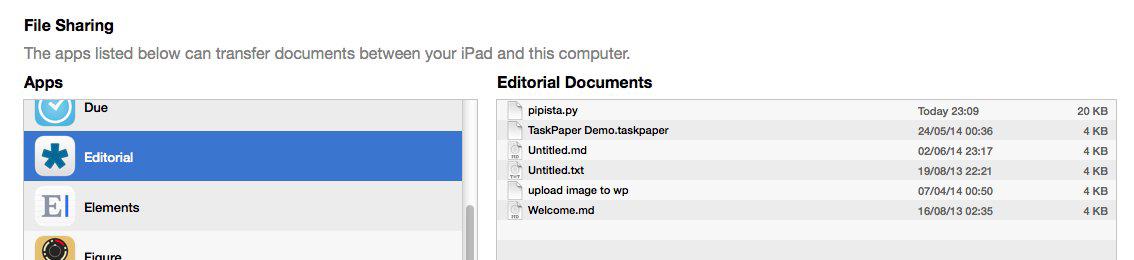
- Upload the pipista.py file to Editorial with iTunes
- Go to the Console and write the following lines. Enter each line separately and end with return.
import pipista pipista.pypi_install('python-wordpress-xmlrpc')
You should now have the module installed and ready to go.
Using the new module in your scripts
Because the directory with the modules aren’t in the system path, you need to add that at the top of your script before trying to import a module. Just write
sys.path += [os.path.join(os.getcwd(), '../../../Documents/pypi-modules')]
And now you can import you’re newly installed modules.
from wordpress_xmlrpc import Client, WordPressPost from wordpress_xmlrpc.compat import xmlrpc_client from wordpress_xmlrpc.methods import media, posts
And there you go!
Compatible Modules
Not all modules will be compatible, especially those that needs to compile C or other languages, so you need to experiment and check the Editorial or Pythonista forums.
Happy hacking!
There's a problem in your guide. If you import Scratchpad (`/private/var/mobile/Applications/1D69E23B-D5F6-44A0-9FBF-207B93A594CF/Library/Application Support/Commands/Scratchpad.py`) by the interactive console it gives error because the path of the shell isdifferent(`/private/var/mobile/Applications/1D69E23B-D5F6-44A0-9FBF-207B93A594CF/Documents`)
You only need to write import Scratchpad Nothing else and it should work.
no,i mean that importing scratchpad with import Scratchpad it will give error because Scratchpad.py is in a different position :-)
The documents are stored in documents, Scratchpad in Commands. Weird. I'll try it later, because it worked without a problem for me.
maybe because running the Pipista script with the play button changed automatically the folder :-)
Actually I run Shellista before which did! :-)
Problem fixed! It now changes to the right directory before importing. Thanks for the heads up!
My pleasure :-)
When I try to install the file (step 4), nothing happens after hitting return. You said it should be installed, but how do I know? I tried to hit the play button in scratchpad, but it returns a huge error. What am I doing wrong? Could you please make the steps a little clearer for us Noobs? Thanks!
I was able to get it installed, but now the next step returns a script error that says 'os' is not defined. What do I do?
I have tried this, and have been stonewalled at the pipista.pypi_install('python-wordpress-xmlrpc') step. I first received a 403 Protocol Error (Must access using HTTPS instead of HTTP). Blindly, I changed all the http: strings in Pipista.py to https: strings, but I still get this error. Master, what must I do?
I'm sorry but I haven't used the script for a while. I'll get on it when I get back from London.
Jacken
Thanks for your prompt reply. Enjoy London!
Hey, did you find time to look into it?
Greetings
Stefan