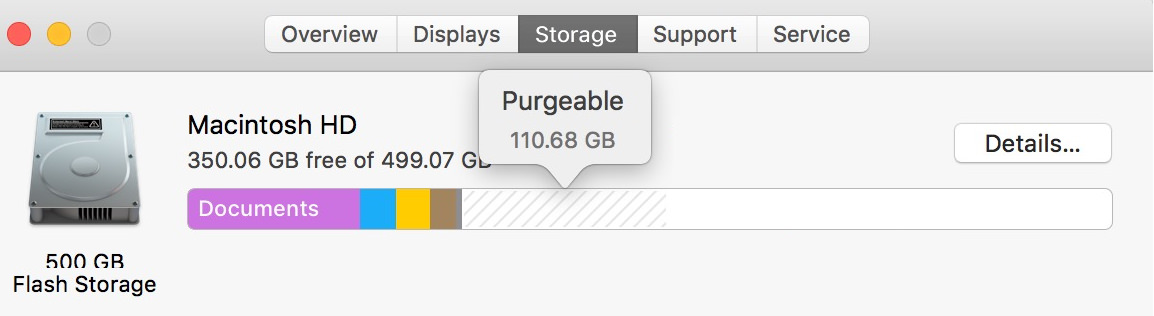
I’ve written an article on how to remove the purgeable portion on a hard disk on MacOS, but in High Sierra, Apple has changed the file system from HFS+ to APFS. Because of that, my old guide doesn’t work. So here is how to remove the Purgeable part of the disk in MacOS High Sierra.
Read this before continuing: Only use this for making more room if you need to change the partition size of your disk. Usually for installing Bootcamp or having multiple partitions on a drive. If you don’t understand the above, don’t do it! The method is not a way of getting more space. That is all handled by the operating system.
APFS – How a Smart File System Can Make Some Things Difficult
Because Apple has changed to a much smarter file system, my old method of creating a file and then duplicate that file until the disk was full, thus forcing MacOS to start to remove the Purgeable portion of the drive doesn’t work anymore. That’s because APFS is smart enough to recognize that it’s the same file, so it makes pointers to the original data, so it doesn’t take up extra space. So here’s how to do it in MacOS High Sierra.
Let’s Fill Up The Disk To The Brim To Remove Purgeable
Open the Terminal application in Applications/Utilities. What we need to do is to start making a file that will grow until the disk is full. So enter the following into the Terminal window:
dd if=/dev/zero of=~/stupidfile.crap
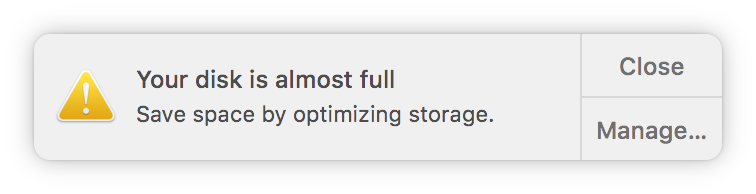
The command will create a file called stupidfile.crap in your Home directory and fill it with zeros. It will continue to grow, first at a fast pace, but as the disk gets close too full, it will become slower and slower. But hang in there. During the creation of the file, you will get a lot of warning messages that the disk is full. Just leave it there, because if you close it, it will reappear after a while.
The Disk Is Full, Let’s Continue.
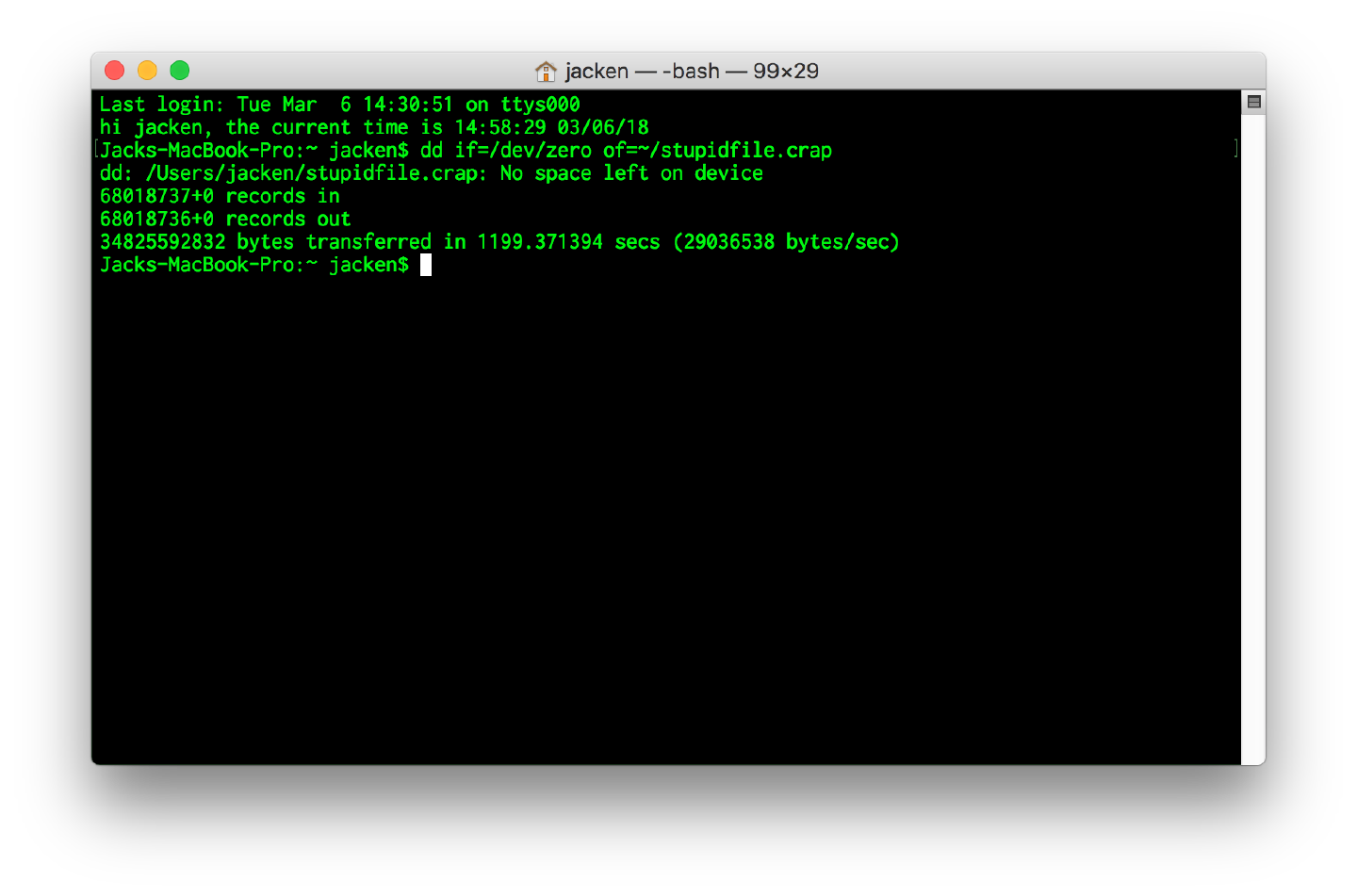
When the Terminal window command ends with the message “No space left on device,” the disk is full, and mission accomplished. MacOS should now have removed all the Purgeable space from the drive. So all that is left is to delete the file stupidfile.crap inside your home directory.
Don’t forget to empty the trashcan to regain the space.
You should now have no Purgeable part of the partition left.
Worked like charm in high sierra
your method works. thank you so much! even mac support didn't know how to get rid of the purgeable data.
The file started to grow but it stopped at 5.08GB. Should I keep waiting?
It slows down at the end because the OS is trying to purge the purgeable space...
Hi!!!
Is there no identical solution for MacOs Ventura?
Works like a charm. Thank you sooooo much!
Hi All im rookie here. Good post! Thx! Thx!
You just need to delete the local time machine snapshots, you can do that by taking a backup first and then running this snippet to purge them.
sudo tmutil disable for i in $(tmutil listlocalsnapshots / | awk 'BEGIN {FS="."} {print $4}') do tmutil deletelocalsnapshots "${i}" done
Install Windows via Bootcamp, and then turn time machine back on the next time you're in macOS.
sudo tmutil enable
That's much nicer to your drive than filling it with zeros.
If you prefer to stick with using dd, set a block size so you're not writing 512 bytes at a time. This will drastically cut the amount of time spent waiting for dd to finish.
dd if=/dev/zero of=~/stupidfile.crap bs=1m
Looks like the quotes were mangled when I pasted.
sudo tmutil disable for i in $(tmutil listlocalsnapshots / | awk 'BEGIN {FS="."} {print $4}') do tmutil deletelocalsnapshots "${i}" done
Thank you so much for this. I had a single 90 gig snapshot sitting around that was preventing me downloading XCode from the App Store. This did the trick perfectly.
Does the following snippet of code go into a file to be executed?
sudo tmutil disable for i in $(tmutil listlocalsnapshots / | awk ‘BEGIN {FS=”.”} {print $4}’) do tmutil deletelocalsnapshots “${i}” done
Well, it didn't work for me. In fact, the amount of purgeable space actually GREW quite dramatically.
Hi! Thank's a lot from Stockholm! Worked perfectly to solve my issue with not being able to use all the free space available on the drive when creating a partition with Boot Camp to install Windows 10. 64 GB was max before and after your fix, 238 GB! So elegant solution!
Hi
did not really worked for me. I think it depends on what space you want to purge. In my case it was a large sync from iCloud Drive that was in ~/Library/Caches/com.apple.bird. It was more than 400GB. Filling up wit ha large file with zero's worked until the drive was full, then it stopped. The Cache was still there... I was brave and deleted the cache. It seems to be OK.
Walter
I just ran into this problem today. A 1TB SSD was full? 460GB's of purgeable data! My VM's paused, the system slowed, and a file sync error'ed out. The OS automatically purges when the disk gets full? Um, no.
Luckily, I have Daisy Disk, in which the latest version supports APFS and lets you simply delete it, rather than wasting a limited number of writes to an SSD and shortening its life. No doubt there are similar tools that can delete purgeable data as well.
MUCH BETTER and more responsible way to do this - Daisy Disk worked like a charm. Although I thought I was duped at first. When I tried to reclaim the purged space nothing happened. Then I saw that Time Machine was in the middle of a backup. I stopped it (skipped this backup) and tried again.
This time it worked perfectly - 280GB of space reclaimed!
The origins of the size of the purgeable space in my case seemed to be from about 16 old iOS backups I manually deleted and then emptied trash.
Hi it work perfectly on the main Hard drive. But I’d like to do the same on my secondary HDD. How can I do it please ? And thank you.
Hi! Just create the file on the external drive instead. You'll find the secondary HDD inside the /Volumes/ directory.
I suspect it's not gonna work for me... It's been stalling at about 10 Mb for about 90 minutes. It oscillates between 8.7-ish and 10.2-ish Mb of available space. :( This iMac is brand new, 3 weeks since its delivery. I'm desperate. And I hate my dependency on this corporation.
Thanks! It worked.
This worked perfectly. Thank you!
Dear sir, thank u very much, this worked perfectly! i was going nuts trying to find a way to "be able to use my own damn computer". Needed this for making bootcamp partition.
IT WORKED PERFECTLY in high sierra. thumbs up!
OMG, finally something that worked in here! I was getting crazy! Thank you so much!!
I had a large Parallels virtual Windows 10 disk that I deleted and it left 80+ gig purgeable. Worked like a charm!
Thank you so much! Fixed everything!! I even feel smarter now. Both my friends that build computers and work on them had no idea what I should do. haha!
Jack, greetings from Silicon valley. Your method works great on High Sierra! Thanks a bunch. Cheers, Ravi
Hi there! So I was able to create the file... however, when I try to put it in the trash, it won't go! What should I do now? :)
Have you stopped the file creation? If it's still running, it might not work, trying to delete the file.
Worked perfectly in Mojave. Although it first stoped with 'No space left on device' and then after 10 minutes the purgeable space was gone.
hint, you can speed up the 'dd' with a bigger block size. eg:
``` dd if=/dev/zero bs=100m of=~/stupidfile.crap ```
Hello, I have been having issues installing windows using bootcamp. its says "your bootable usb drive could not be created, there is not enough space available on the disk" I have tried all command including sudo tmutil thinlocalsnapshots / 999999999999
dd if=/dev/zero of=~/stupidfile.crap rm ~/stupidfile.crap
And also unticked time machine, It still brings the same thing when i try to install again. On my storage I have 716 GB available..
Please Is there any another solution or fix to this issue????????
You can't install Bootcamp on an external disk, unfortunately.
It's not an external disk, its the system hard drive for my macbook pro and its almost new that's why i have got a lot of space on it. And i have tried all but i keep getting the "your bootable usb drive could not be created, there is not enough space available on the disk” I have tried all command including sudo tmutil thinlocalsnapshots / 999999999999
dd if=/dev/zero of=~/stupidfile.crap rm ~/stupidfile.crap
And i also unticked time machine. Please is there any other thing you would suggest???
Weird. Could you take a screenshot of the partitions in Disk Utility and upload a link?
I tried sending the link for the screenshot of the partitions here but i don't think you got it.
How big is the USB stick you're using to create the Bootcamp disk?
Its a 32gb usb
this is the link to the partition https://imgur.com/a/LbERoEy
this is the link again https://imgur.com/a/LbERoEy
What version of Mac OS are you running?
I am running a mac os High Sierra and my usb is a 32gb usb.
Could you check the partition table on the USB stick. Some brands like Sandisk adds a small partition, make sure to remove it using Disk Utility.
Yes i did and everything is intact, i am thinking to upgrade to MacOS Mojave if it might help. Or is there any other way i can reset the system totally since i have no file or data on it???
Thanks a bunch!!!
Thanks for your help! I thought the file had maybe grown large enough to remove the necessary purgeable memory, and I went ahead and deleted stupidfile.crap from my home folder.
Now, "system" is still reported as taking up 233 gb of space on my hard drive, and re-entering your command in terminal does not appear to be working.
Is the original command still running even though I deleted the document from my home folder? Do you have any suggestions as to how to fix this? Thanks!
This worked great! I had tried everything else. Thanks so much!!!!
I had 10.77 gb purgeable space according to Disk Utility. I started filling with zeros. After about 15 min, it stopped and said "No space left on device". In About this Mac, it still showed 10gb as available, which was the purgeable space. So, it did not remove that space, it just kept it. This happened on Mojave.
I thought it was hopeless until I stumbled across your blog! You are an absolute lifesaver! It worked like a charm. Thank you so much.
Has anyone found a command to list or anywhere written to disk that shows the amount of purgeable space? I'd like to script a warning if it passes a certain threshold but thus far haven't found how to programmatically get the number that is displayed in the GUI anywhere.
Wow!! thank you for this. I have spent 6+ hrs today trying to seek the solution. I ended up with 200GB of purgeable disk space and only 39GB free. Every time I deleted any files it just became purgeable. I only want to go for a run, so issue started when my watch App didn't have Apple Music App installed properly, however when I tried to backup my iPhone in order to do a new install , my Mac just returned not enough disk space. I have watched the stupidfile.crap fill up my HD to the tune of 200GB and once finished , deleted and I am now 200GB richer in free space! thank you
Works on MAC OS Mojave. Thanks you man.
Doesn't work for mojave
Last login: Mon Dec 3 00:43:07 on console iMac-2016:~ myname$ dd if=dev/zero of=~/stupidfile.crap dd: dev/zero: No such file or directory iMac-2016:~ myname$
It needs an / in dd if=/dev/zero
thanks, I discovered that. I did it several times and was able to delete some at a time, but never got it down below 300GB and kept filling up. What worked was reinstalling the OS...now the System is at around 100GB. In the middle of a big project and couldn't take on a clean install right now.
I also used the suggestion above " you can speed up the ‘dd’ with a bigger block size. eg:"
dd if=/dev/zero bs=100m of=~/stupidfile.crap
This worked with mojave on my macbook pro! At first I was at wit's end because I wasn't getting the "no space left" message, but I just had to wait for longer (2 days) until the file was completely filled!
This didn't work for me. As the file will automatically stop when disk is almost full and purgeable is still there.
What worked for me. Disk utility on MacBook Pro showed about 120GB purgeable space (none of my other three computers, 2 iMacs and 1 MacBook Pro showed that). I just ran Onyx maintenance and got about 700MB in the end. Hope it works for other users.
dd if=/dev/zero bs=100m of=~/stupidfile.crap worked perfectly for me on Mojave, 10.14.1 I've run it about 4 times and managed to clear 200GB of purgeable storage in 10 minutes. Solved my issue! Thanks
This did not work for me in mojave. I tried multiple times and each time, it uses up all free space EXCEPT the purgeable space.
Should the optimize mac storage be checked or unchecked while performing this? In Mojave, the script uses up my actual free space but still leaves all purgeable space in there.
Amazing! I had tried everything. My system seemed to be missing a lot of space and no matter how much I deleted it never freed up any space or reported any purgeable space. This fix it!
It worked for me in Mojave 10.14.2 !
Very smart method. It worked perfectly. Thanx
When I tried this, I received the error "dd: ~/Dev/stupidfile.crap: No such file or directory".
To get around that, I used the following steps:
1. type: cd ~ 2. type: pwd 3. type: dd if=/dev/zero of=/Users/yourusername/stupidfile.crap note: replace "/Users/yourusername" with the result from the pwd command in step 2
this really helped me, thankksss <3
Actually my exact error was "dd: ~/stupidfile.crap: No such file or directory"
Works very well in Mojave too!!
Thanks a lot!
Thanks : it does work like a charm on 10.14 Mojave ! greetings from the French Alps...
this made zero difference. thanks.
It worked! Brilliant! Thanks a lot!
Hey !
Sorry but it keeps reapearing even tho i dealeted if :c
Help ?
Just about tried everything imaginable... all just to get WIN-10 running, with access... to get studying on human anatomy and phyis.. Never thought that installing WIN would have taken this long, disappointed to know that pursuable space needs to be purged with space...
Does the commandline, dd if=/dev/zero of=~/stupidfile.crap, work for SSD drives or only hard drives? I ask, because SSD drives have set number of writes to the drive. After some time, the unusable cells are flagged by the system to not use. You can still read from the closed sections of the drive but, you can't write.
This is an answer I've been looking for for years - THANK-YOU (MacOS High Sierra)
I have a 2 TB SSD in 2 partitions of 1 TB Each.
To run the command on each partition, go to the /Volumes directory to see the partitions (e.g. cd /Volumes/MyPartition01)
Do an 'ls' (LS LiSt) to see what directories are there and change into one (e.g. cd /Volumes/MyPartition01/work)
I was a little scared of filling the disk so I used the count parameter to free a fixed number of 512 byte segments. dd if=/dev/zero of=./stupidfile.delete count=500000000
500,000,000 is 0.5GB x 512 bytes per segment = 256GB (you can adjust count to meet your needs or to test a smaller amount).
256GB was all I needed for the head-room I needed to keep working in my oversized Virtual Machine which was choking (VMWare). I couldn't for the life of me free the purgeable space and was stuck at around 6GB free on a 1TB partition. I could see 456GB purgeable but no luck getting my Virtual Machine to use it (VMWare).
If your other partition is full - if you have more than one, you can change directory to that volume and do the same (e.g. cd /Volumes/MyPartition02/SomeOtherDirectory).
Good luck and thanks again - goofy this is an issue on this OS that isn't addressed from the Disk Utility (argh!).
Amazing, it worked!
Thank you a lot for this great feature. I spent hours for searching on how to remove the purgeable part on HD. I run on Catalina 10.15.1, and there is not much info about this matter.
The problem occurred after I deleted 111 GB data from HD, but it all remained on HD as purgeable. I could not find the way how to clean it and this really WORKED!
Thank you a lot.
Glad to help.
This worked flawlessly! To think that all of the other results to fix this involved downloading some program. Thank you!
Hi Jack
I am pasting the code into terminal and it is saying "no such file or directory." I have about 288GB of purgeable data that I can't get rid of! Any help would be much appriciated!
This absolutely worked for me. Mac Os High Sierra 10.13.6 Mac Pro 4,1 Early 2009 with firmware update to 5,1 running 2-3.06ghz 6 core intel cpus and 16gb 1333mhz ram.
The drive i cleared is a Samsung evo960 1.05tb
Started with 41gb of available space and 355gb of purgeable storage.
I ran your script and the interesting part is that it started filling up the 41 gigs and after it filled it the storage started reversing. It started diminishing the purgeable storage to the point where it reached 4mb or purgeable storage. Once it got there, I terminated the process in terminal simply by using command+Q, deleted the stupidfile.crap and cleared the trash bin. I restarted the computer to be sure and it absolutely worked.
Thanks man!
Thanks a lot ! Did it on Monterey and it worked perfectly too. Damien.
Hey - thanks a million, well, at least a couple grand. Was trying to load Xcode and I didn't have space. Was thinking, maybe time time to upgrade, maybe move stuff onto an external drive, .... NOPE. Just ran the above and stuff was "optimized" into the cloud.
Many many thanks